- Marking line adjustment algorithm
- Draw "girdle profile" instead of "girdle curve"
- Enumeration of solutions
- Change status of yellow inclusions for Swim, Bound
swim, Recut and etc algorithms in Tools
- Export mmd file name into Roughvalues.txt
- "Rough report" button on the scene
- Option "Set layer by handle" in Tools menu
- New laser drawing mode (by default "Laser Drawing Mode"
= 3)
- Improvement Z-sort marking mode
- Output path stores permanently for auto sequence process
1. Marking line adjustment algorithm
New algorithm allows remove extra marking line. For example, if you have the solution with three diamonds and two planes.
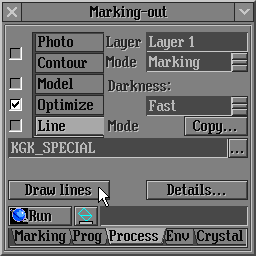
Press button Draw lines in the panel Marking Out / Process:
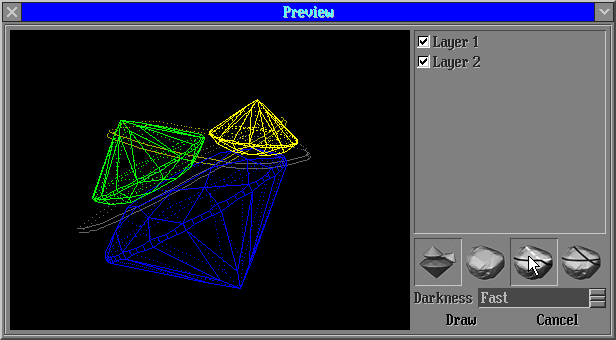
The panel Preview draw lines will be opened. This panel contains 4 buttons: "visualization polished diamonds", "visualization rough model", "automatic remove lines from layer which intersect polished diamonds" and "restore original lines". The button "automatic remove lines from layer which intersect polished diamonds" allows remove unnecessary lines in automatic mode.
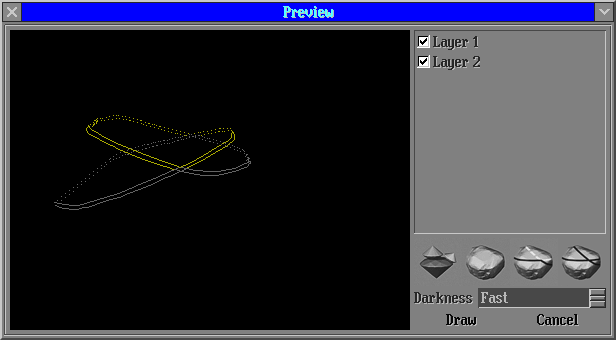
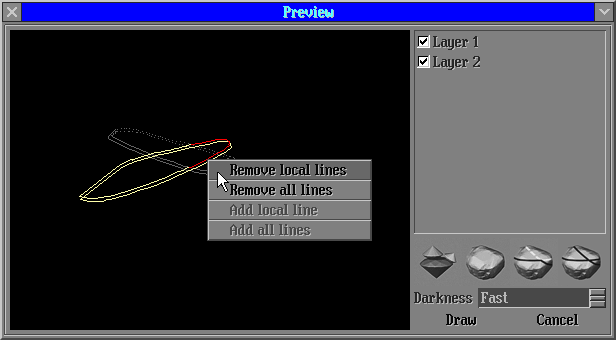
Manual adjustment of marking line allows remove unnecessary lines in handle mode:
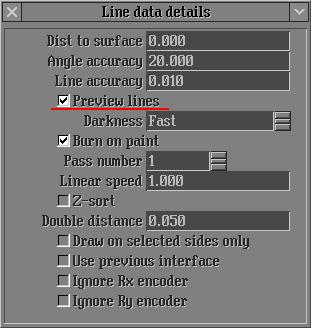
It is be able switch on/off Preview draw lines. Press button Details... in the panel Marking Out / Process. The panel Line data details will be opened. To use the Preview panel and the marking line adjustment algorithm select Preview lines option:
2. Draw "girdle profile" instead of "girdle curve"
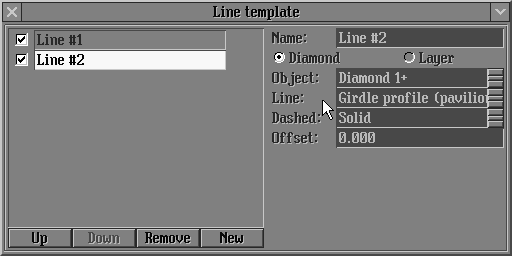
New types of marking line Girdle profile (crown) and Girdle profile (pavilion) are available. These types of line set as default instead of Girdle curve and you can set back Girdle curve line in the Line template panel.
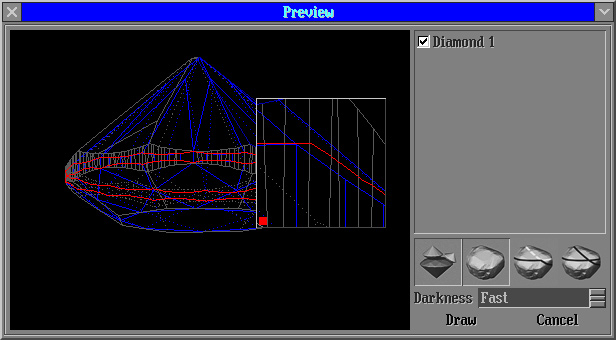
The Girdle profile line is drawing on the rough (semi polished) model similar to the shape of the diamond girdle (see picture below).
3. Enumeration of solutions
The solutions are numbering in new version. To switch on/off this feature use the panel start/inner/options (optimization), "Set ID for solutions" flag.
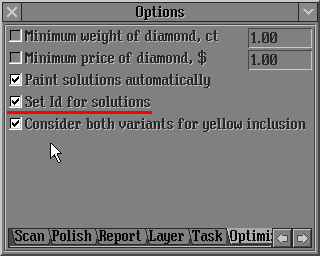
The default setting of this option is switched on.
4. Change status of yellow inclusions for Swim, Bound swim, Recut and etc algorithms in Tools
There are two options of new feature:
1) New behaviour of algorithms Swim, Bound Swim, Recut and etc allows obtain the solutions without worsening of clarity. Before an optimization process yellow inclusions around the diamond are marked as green if its clarity are the same as the diamond clariry or its clarity are better; and are marked as red if inclusions clarity are worse then the diamond clarity.
To use this behaviour the option "Consider both variants for yellow inclusion" should be switch off:
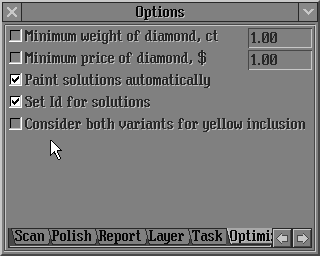
2) Consideration of all yellow inclusions as red as well and green inclusions.
The option "Consider both variants for yellow inclusion" should be switch on:
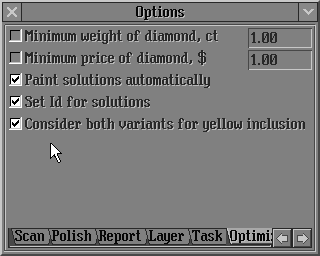
The default setting of this option is switched off.
5. Export mmd file name into
Roughvalues.txt
The full path name of mmd file is exported into Roughvalues.txt with bookmark named: STONE_FILENAME
For example: STONE_FILENAME=C:/Program Files/OctoNus/Helium/Proj1.Mmd
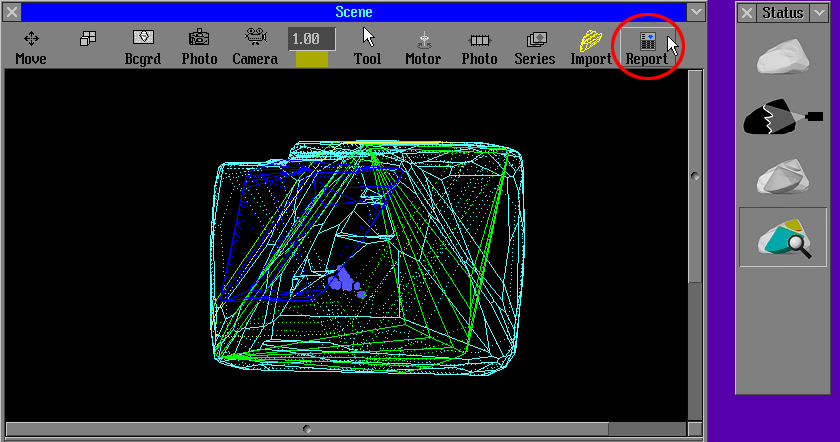
6. "Rough report"
button on the scene
Rough report button is available in the Scene in Expert mode. It`s opens default report which is set in the Report preview panel.
7. Option "Set layer by handle" in Tools menu
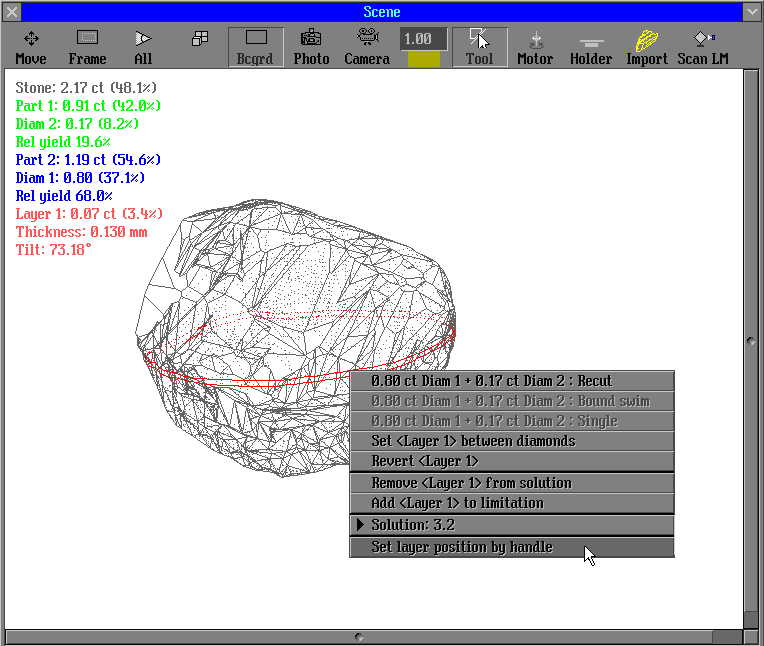
The new option allows starting "Set layer position by handle" from the Tools menu.
8. Improvement of the laser drawing mode
The low speed of burning might brings stone to burst. The new mode do not allows drawing lines required low speed of burning and also short lines (less then 5 microns). It preserves rough stones from damaging. The new "Laser Drawing Mode" is set by default ("Laser Drawing Mode" = 3 in Registry).
Versions history
|
















