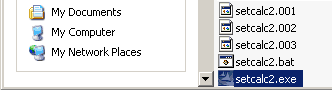
1. Run Windows Explorer. Find the folder with the target file, for example, setcalc2.exe, and select the file. View file properties by menu command File/Properties or just click right mouse button and select Properties from popup menu.
2. In the Properties dialog click on the tab Digital Signatures. In the signature list select the line beginning with OOO OctoNus and click on button Details....
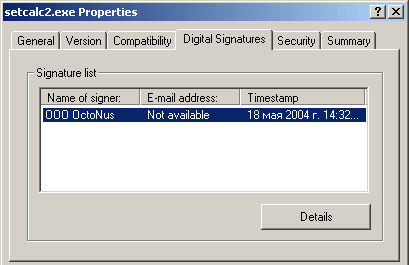
If the Properties dialog does not contain tab Digital Signatures it means that the file was corrupted during the transfer from server or damaged by virus.
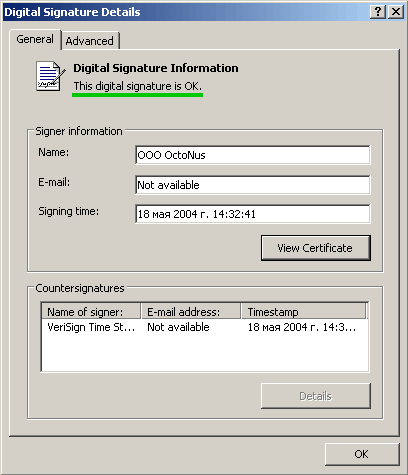
3. In the Digital Signature Details you should see the line This digital signature is OK that means that the file is OK, otherwise your file is corrupted.