 |
How to use given lighting (office, shop, firescope, etc)?
DiamCalc can imitate various light sources. This option is available
for Photoreal model type only, as Draft model types do not take illumination into account.
To changes a type of lighting, use Options-Lighting menu, and then
select a desired type. The following common types of lighting may
be turned on in the photoreal mode:
- One scattered light source located above the diamond "Dialite"
- The main scattered light source above the diamond and several
auxiliary point sources directed from different sides "Jewelry Shop"
- "Disco"
- Lighting similar to office "Office"
- "Incandescent lamp"
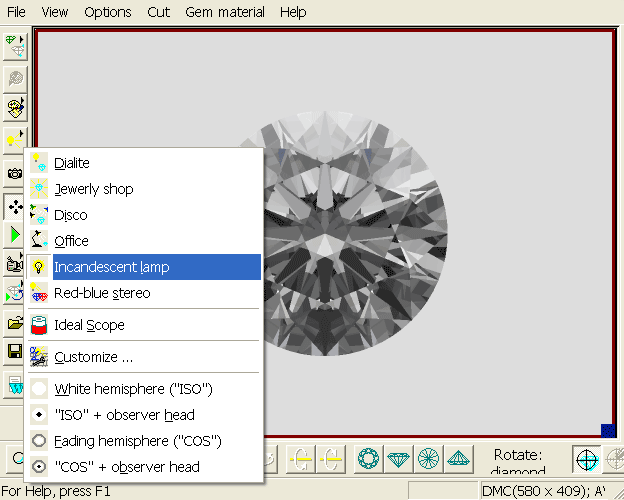
The Options - Special View menu contains a list of special lightings.
The DiamCalc also gives you a possibility to adjust the lighting
with the "Customize..." option of the light menu. Select
this option and you will be presented with the panel that allows
you to con-figure number of sources, location, size, brightness
and other characteristics of each light source.
|
|














