 |
How to select a unit system?
By default, size parameters are presented as a ratio of the corresponding value
to the diameter. In some situations, other units, e.g. millimeters,
can be more useful. The user can choose measurement units for each
particular parameter. To do this, point the mouse cursor to the
parameter value and click right mouse button. A menu appears, allowing
to see available units and select one of them:
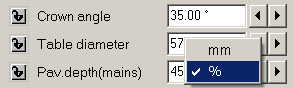
The menu above was produced by pointing the mouse to the value
of Girdle thickness parameter and pressing the right mouse button.
A check mark shows that the current unit of measurement is percents
of the diameter. If millimeters are selected from the menu, a value
will be recalculated and shown in a new format.
When values of parameters are entered from the keyboard, units
of measurement can be specified along with values. When a string
like "1.1 %" or "0.02 mm" is typed, DiamCalc
recognizes what is the value and what is the unit of measurement
and change them if needed. If only a number is typed, DiamCalc applies
the current unit of measurement.
|
|














